After login you find your event organiser from the top right profile menu

Setting up game spots and tablets
Open the event organiser page, navigate to Game spots and digiscoring tab.
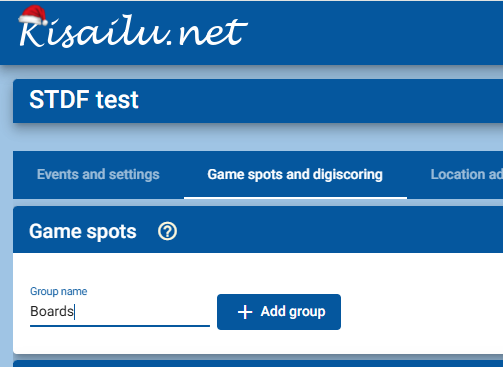
Give name for the group and add it
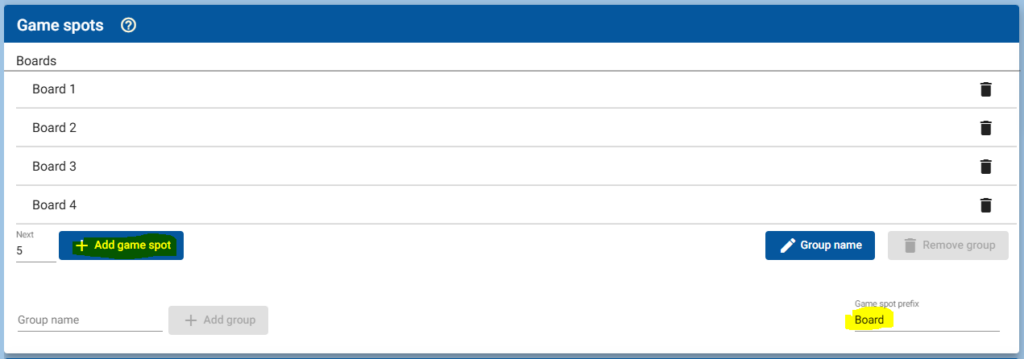
Add name prefix for game spots and add few of those
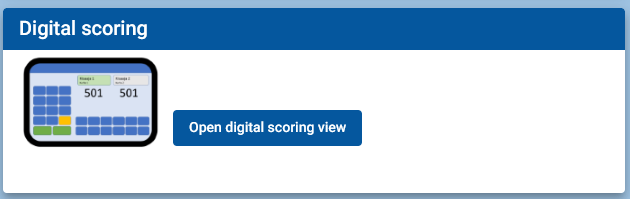
Open chrome (preferred) on tablet, navigate to kisailu.net and from very bottom of front page click for “Open digital scoring view”
On Chrome menu you should find (or it may also suggest) option to “Install Kisailu.net” this allows you to create an icon from where Kisailu.net can be opened always in fullscreen mode without browser menubar etc.
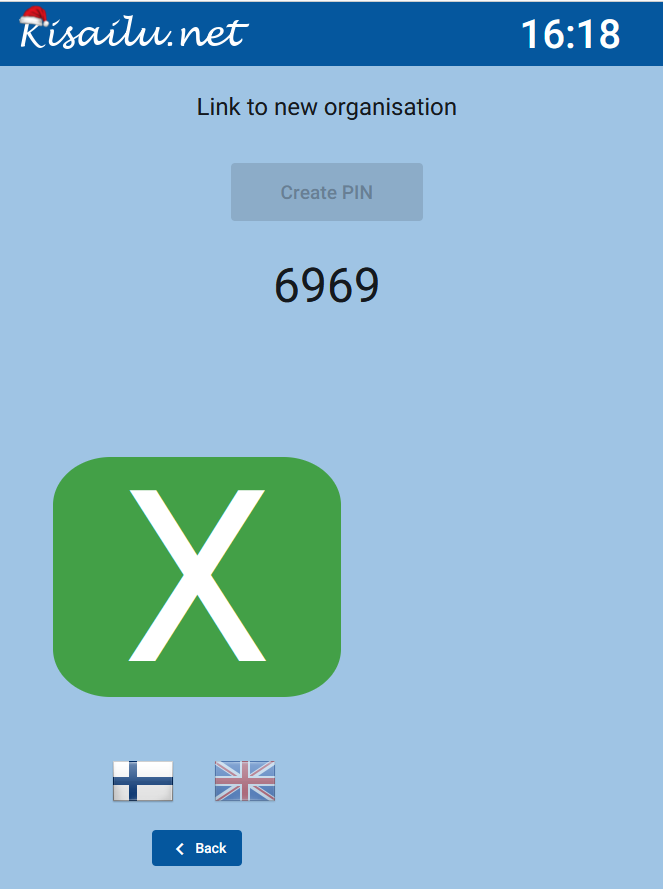
Click “Create pin”. (If this view does not open automatically it can be found from Menu -> Tablet links
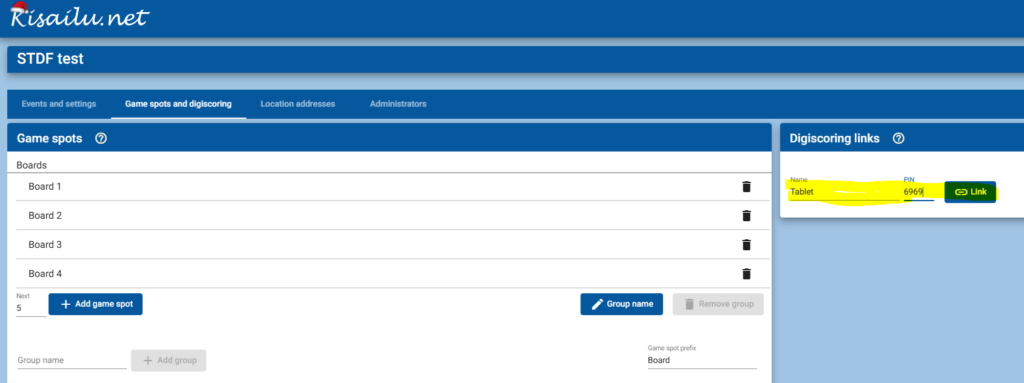
Go back to laptop and in “Digiscoring links” give name for the tablet and give the pin code, click “Link”
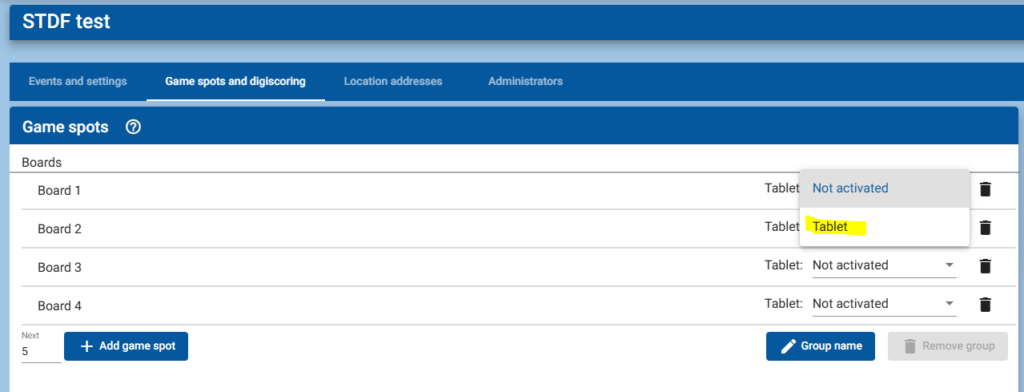
In order to automatically assing games to this tablet associate it with one of the game spots
Setup location addresses
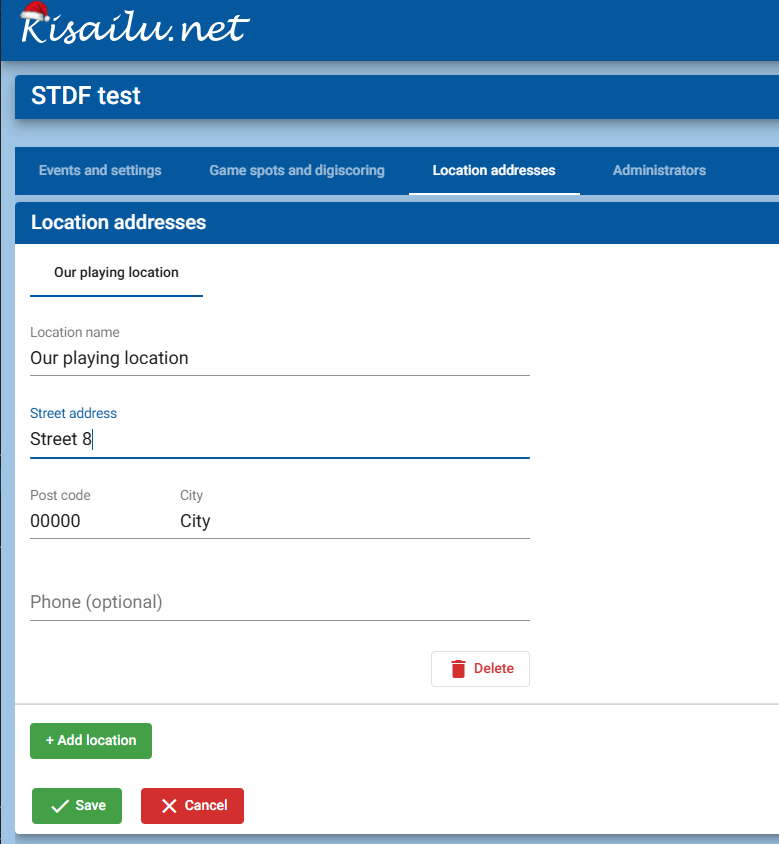
In order to create event one must have defined address for the location of play.
Give name of location (Bar, team club etc), Street address and city. Post code as of now follows finnish convention of 5 digits, you can use 00000 as one. Save
Create event
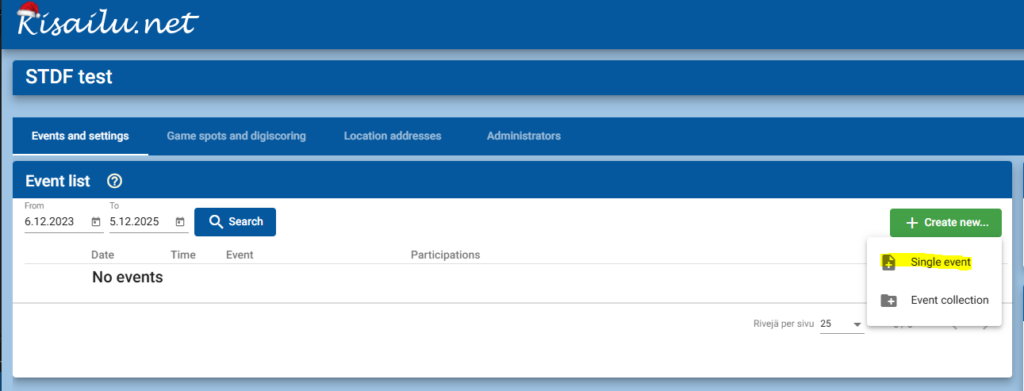
Select “Events and settings” tab, click “Create new” and select “Single event”
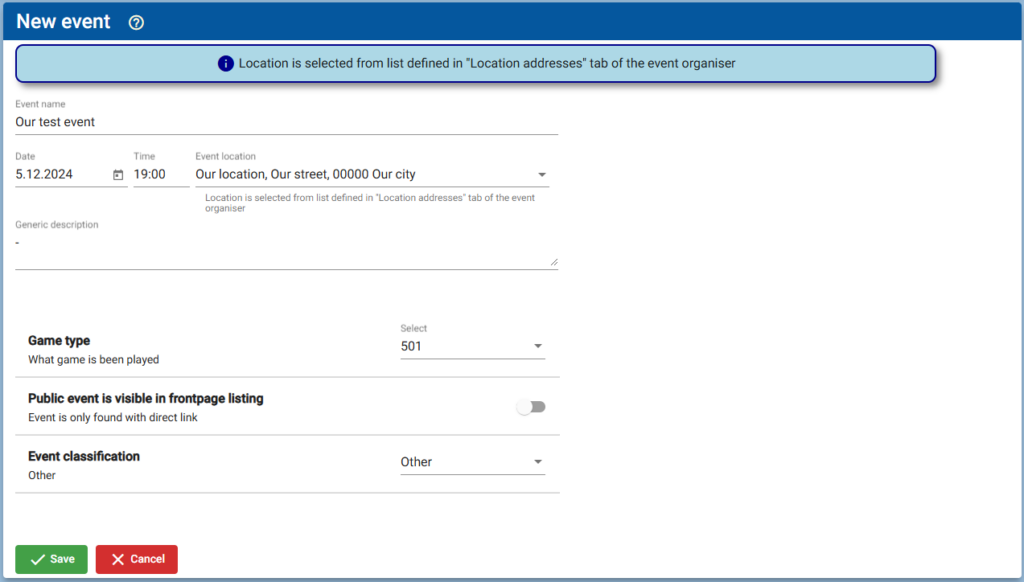
Give name, select date, give time, select game type (501)
Set event as private (will not be shown on frontpage but event can be accessed with direct url)
Save
Review different settings
In “Generic” tab most of the default values should be ok for test event. Main selection is “Player type” for singles or doubles.
Also in “Bracket” tab default values should be ok. Main settings are used bracket type (Double elimination, Single elimination, Round robin) and the best of settings
In “Games” tab enable “Game spots” and enable desired boards for the event
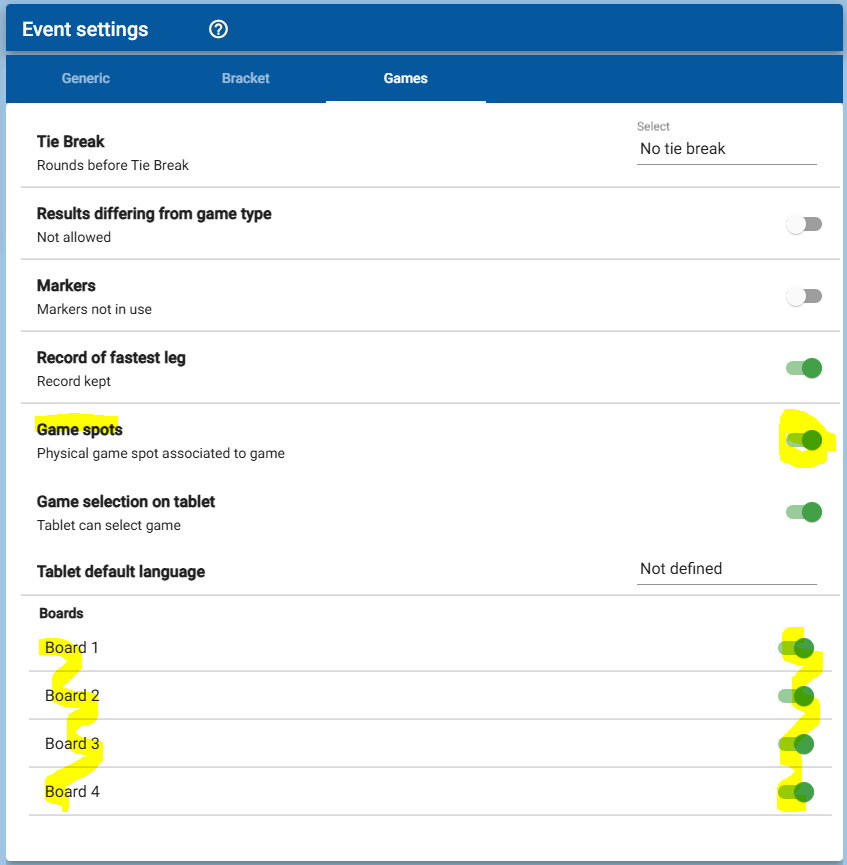
You can also enable markers and marker responsibilities in order to keep track and inform who will be the marker of the game (recommended)

If you want players having Kisailu.net account to register themselves to event click “Open registration”. Once all are in you should close registration

You can also add players manually. Give name and search. If there is player who has account you can select that or then add player just as a name to the participants list.
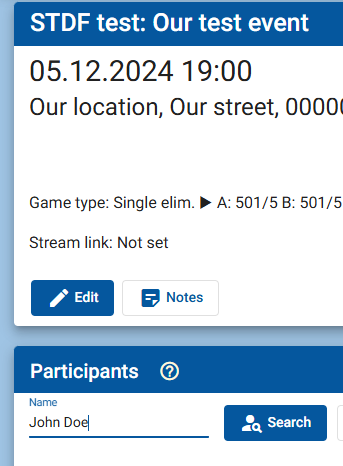
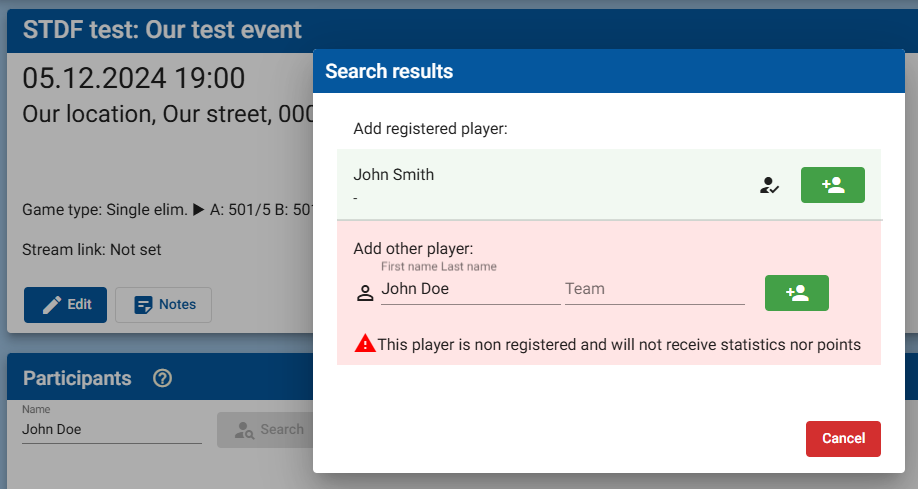
Once all players are on the list, close registration if it is still open and start event

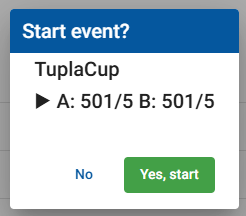
Running the event
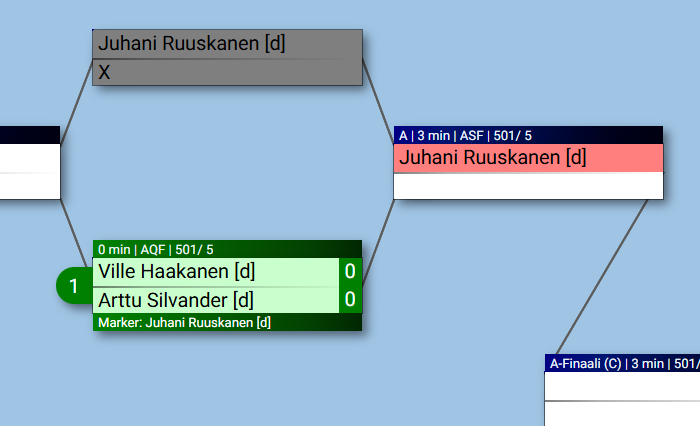
Blue games with both of the players are the ones that can be started. Click one of those to see game options
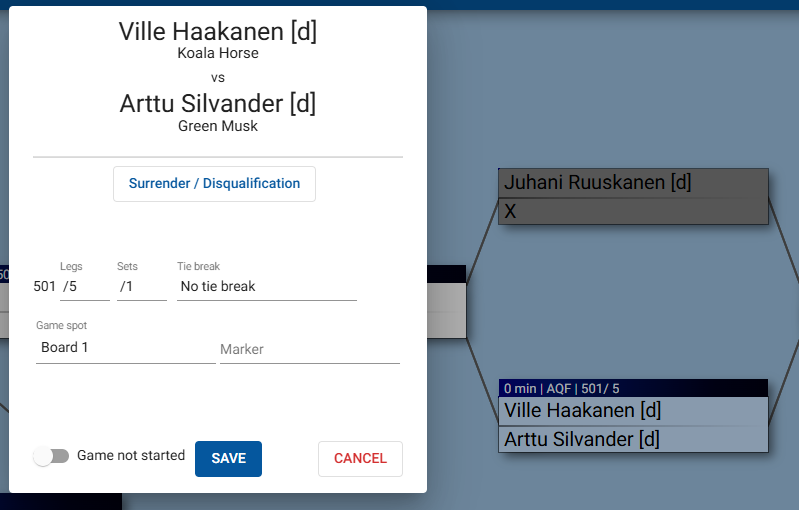
You can here still change the best of options and enable tie-break. Most important settings are board selection and marker selection. Once done mark the game as ongoing and start game.
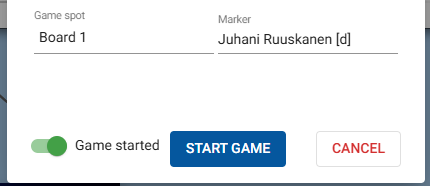
Green games are the ones ongoing, selected board number is visible on left of the game. Red color on a game indicates that player is either currently playing or marking a game.
Using tablet for digital scoring
When game has been started and associated with board the tablet tablet should show following screen.
If game does not appear one could tap the board number (on green background) or refresh browser view (usually by swiping down on screen)
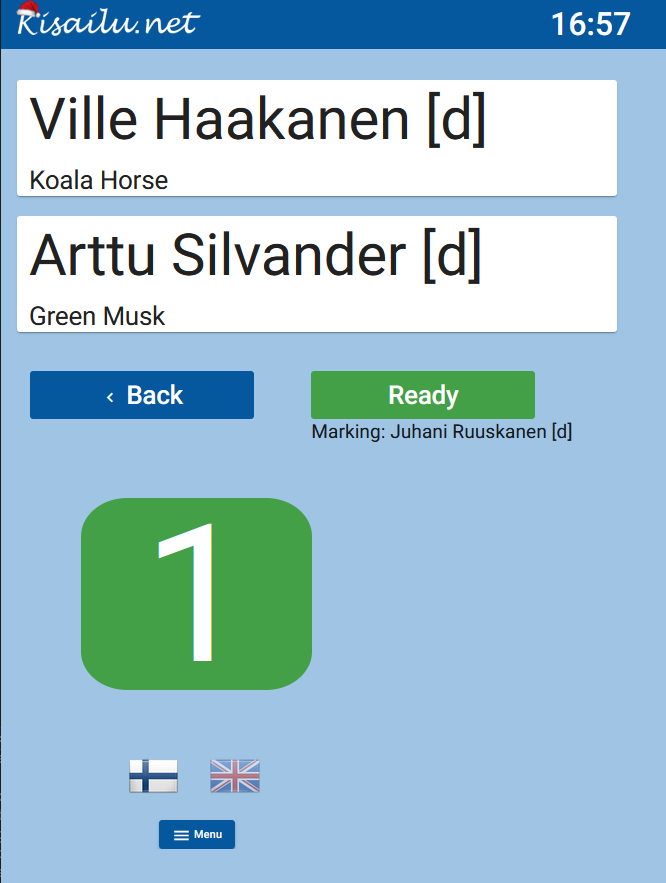
Marker taps “Ready” to advance game to next step.
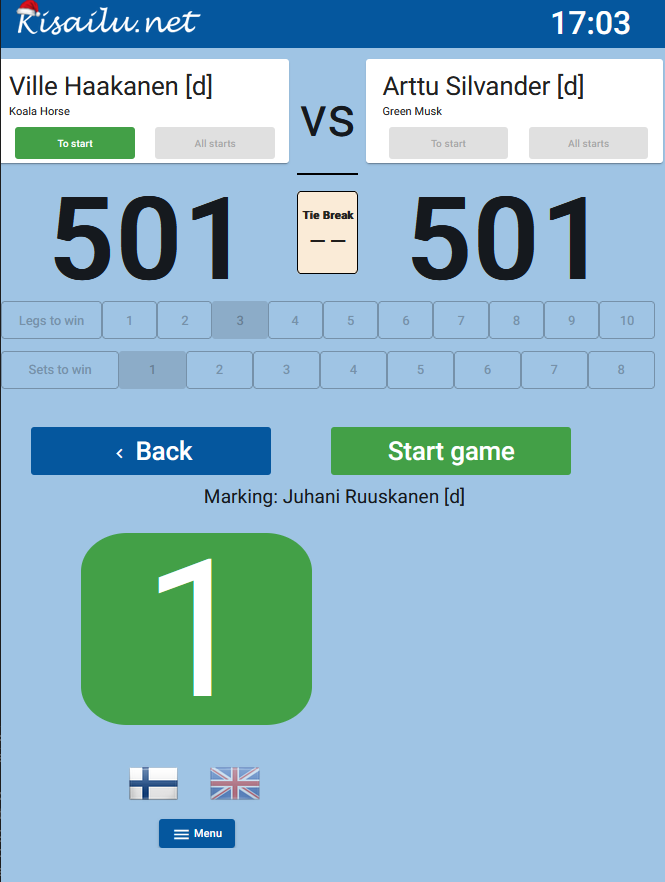
Player to start fist leg is determined and selected.
One can also give all leg starts for either of the players.
Once selected marker starts the game “Start game”
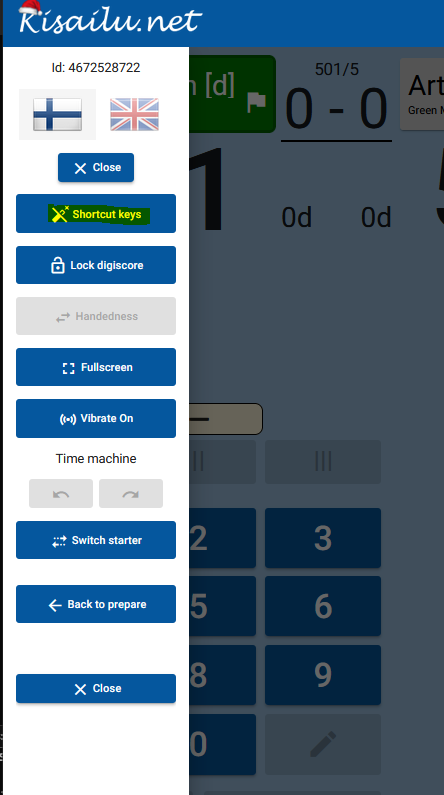
On first time using tablet open menu (three lines icon) and enable “Shortcut keys”
Marker enters the score (or remaining score value) or uses the shortcuts for the most common scores
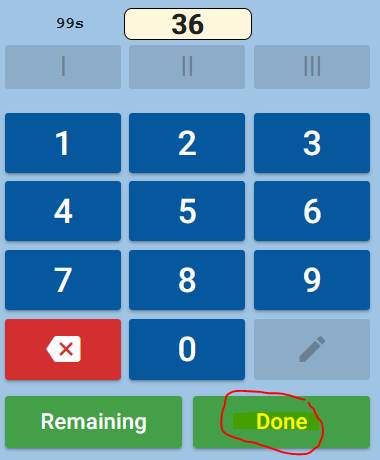
Editing of incorrect score
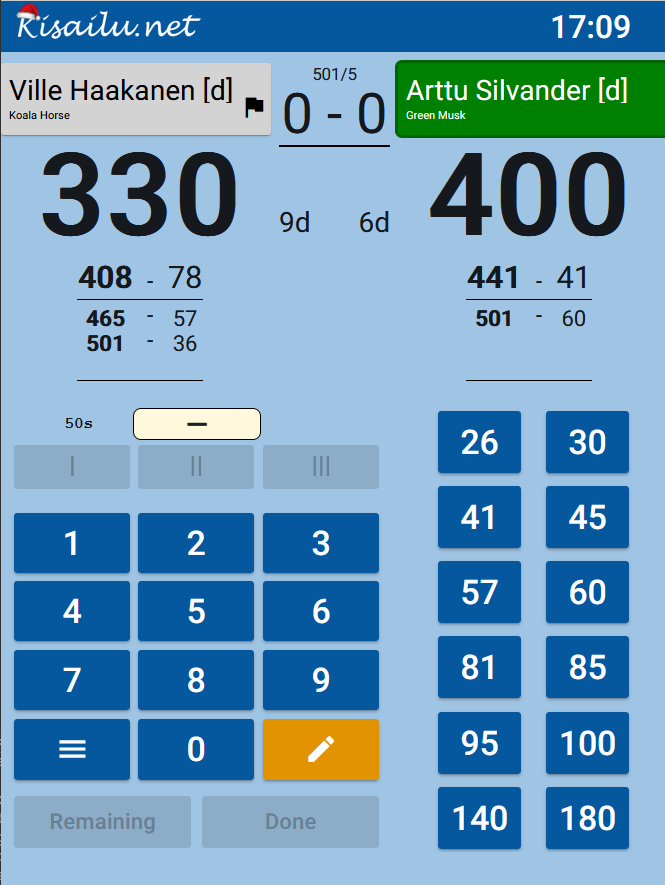
If the score was entered incorrectly it can be corrected by pressing the yellow pen icon
In this example Ville has just thrown and marker scored incorrectly 78 points for him. It is Arttus turn but we can correct Villes score here (or wait for Villes next turn)
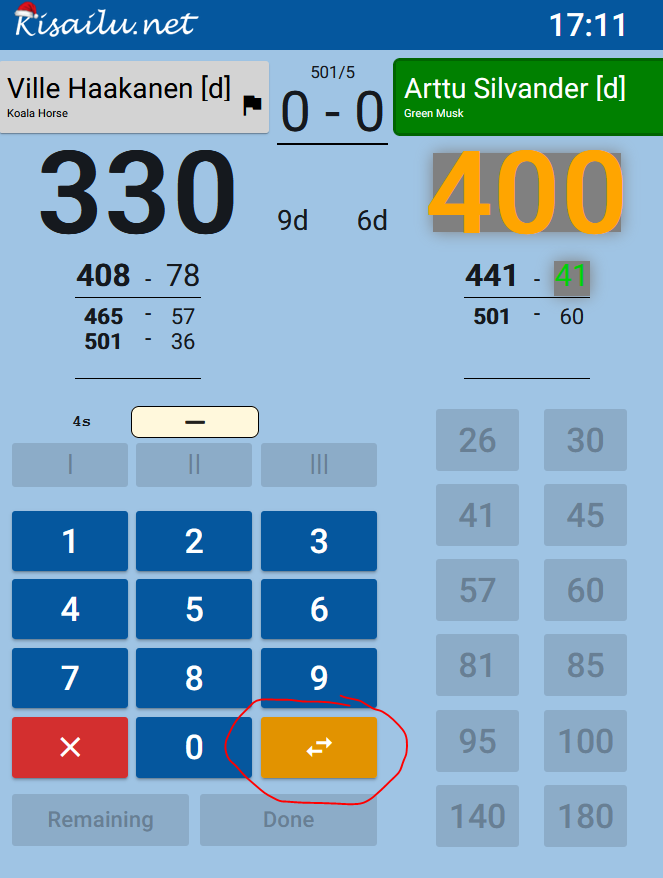
In edit mode the remaining score to be edited is shown as orange text on grey background and associated last actual score as green on grey background.
In our example it was Villes score (78) that is incorrect so we need to switch the score to be corrected using the arrow button
Now as we are editing correct score/remaining score marker can enter the correct value
Remaining – button will set the new remaining score (orange to orange color mapping)
Done – button will set the previous done score (green to green color mapping)
In our example we change Villes previous done score of 78 to 48. So enter 48 and press “Done”
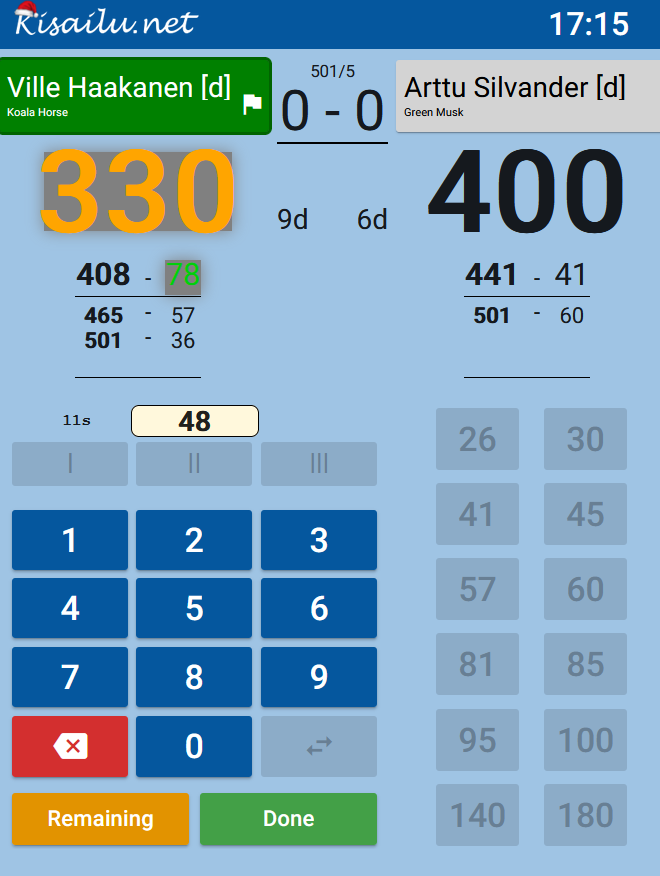
So Villes previous score is now corrected and it is Arttus turn to throw.
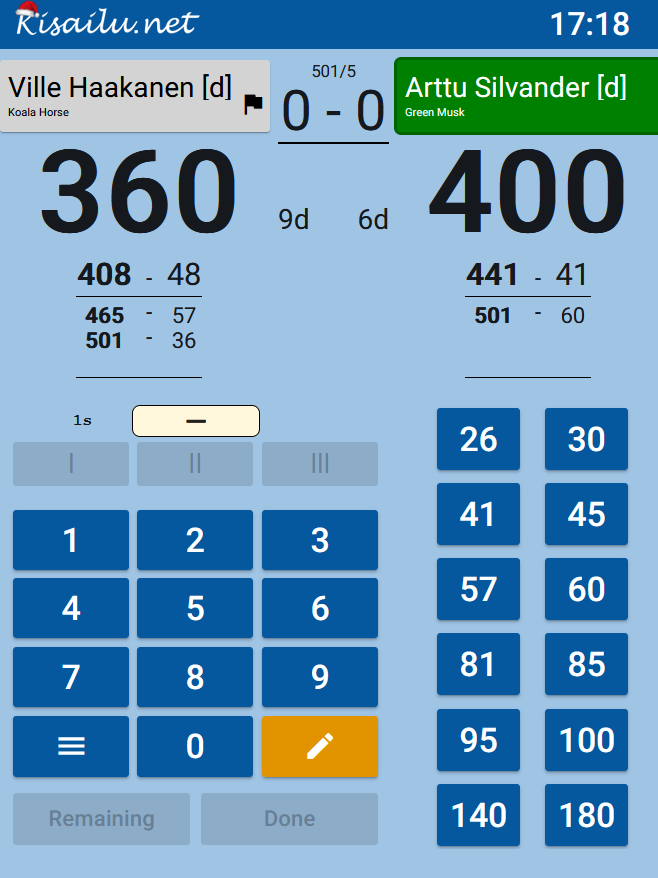
Score editing works only to previous throw of each players (as genericly is rules for Darts)
Tablet menu contains also “Time machine” which can be used to travel back in history in exceptional cases.
End of leg
At the end of leg when a player end the leg instead of entering the numerical value of score (in example 40) marker tells to the system how many darts were used to make the checkout
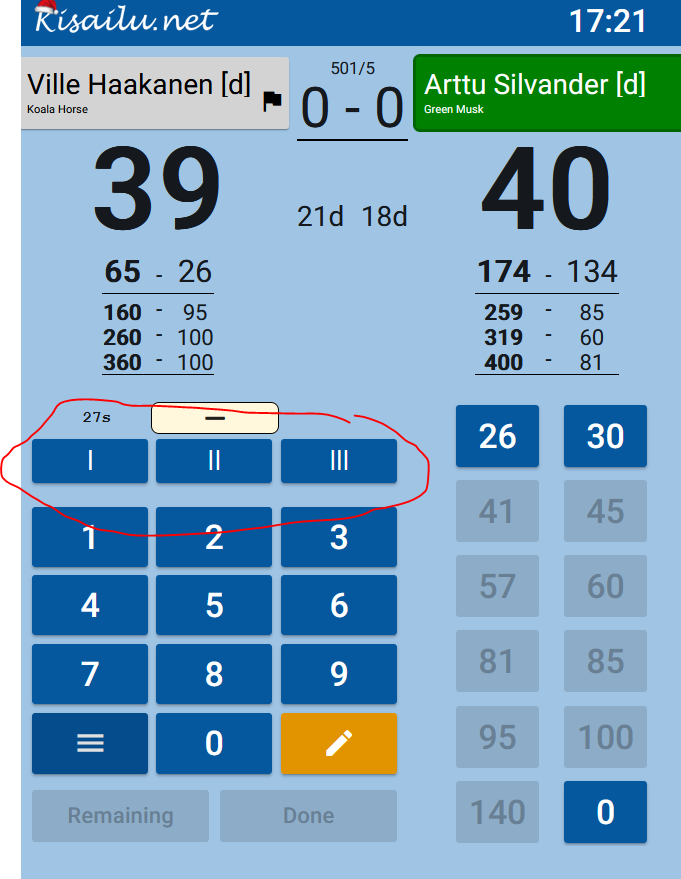
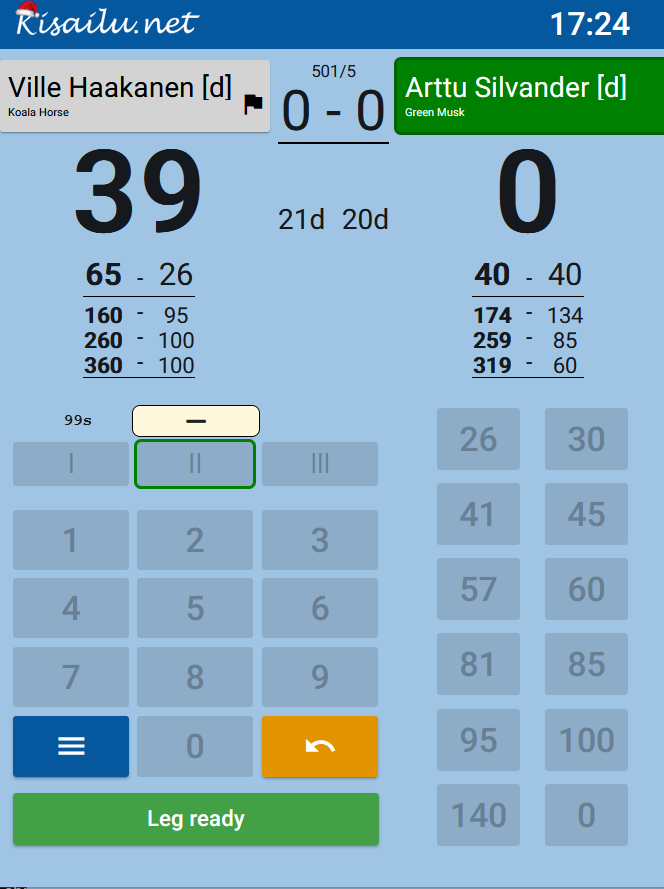
Lets say Arttu did checkout on second dart. Marker selects the “II” and after that clicks “Leg ready” and next leg starts
End of game
At the end of last leg marker confirms the winner. If for some reason the winner is not correct one can use the yellow undo button or use time machine from the menu.
If winner is correct marker clicks “Confirm” and game ends.
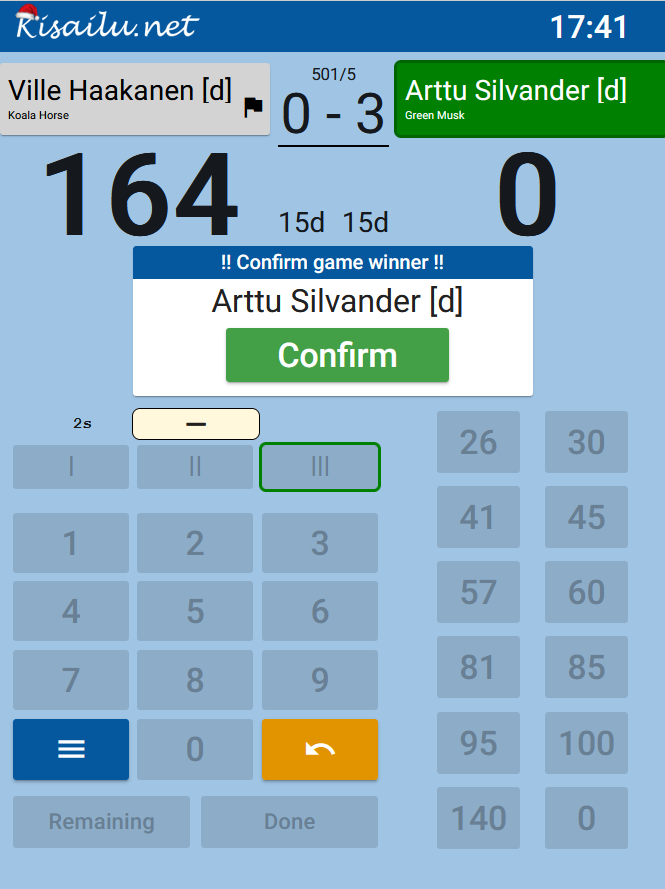
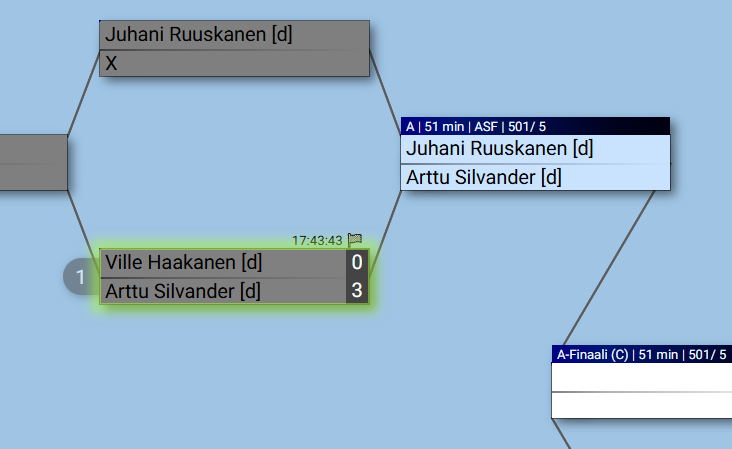
When game has ended on tablet the Game master’s laptop detects that and advances players in bracket and next game can be sent to the tablet
Digital scoring practice
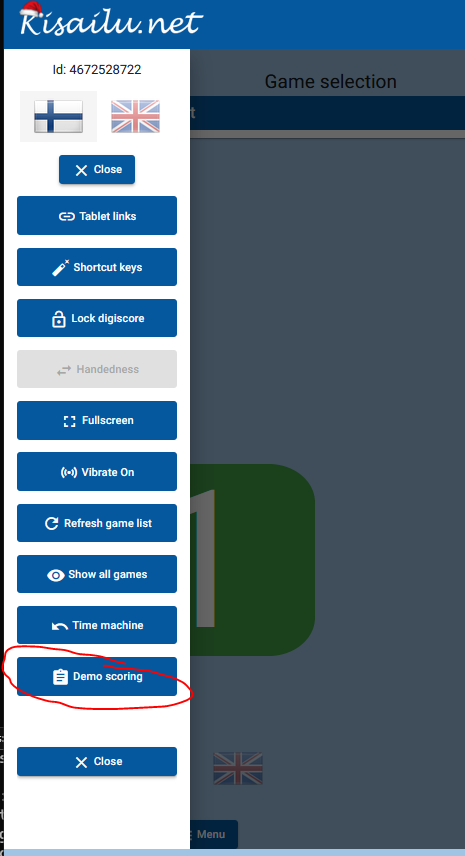
In tablet menu you’ll find “Demo scoring” which can be used to try and practice the use of the digital scoring of x01 games. This is demo mode which does not store data.